Getting Started
Quickstart
Get MCP Ambassador running locally in under 5 minutes.
Prerequisites
- Docker Engine 20+ and
docker composev2 - Node.js 20+ (for
npx @mcpambassador/client) - An AI host tool: VS Code, Claude Desktop, or any MCP-compatible client
1. Clone and start
git clone https://github.com/mcpambassador/server.git
cd server
cp .env.example .env
docker compose up
What happens on first boot:
- Self-signed TLS certificates are auto-generated
- SQLite database initialized at
./data/ambassador.db - Admin API key printed to logs
- Default accounts created (development mode)
Ports:
https://localhost:8443— Client API (for MCP clients)https://localhost:9443— Admin + User Web UI
2. Default accounts (development mode)
| Role | Username | Password | Access |
|---|---|---|---|
| Admin | admin | admin123 | Full admin UI + API |
| Test User | qa-tester | test1234 | User portal |
Change passwords in production
Set NODE_ENV=production to disable seed accounts. Change the admin password immediately on any public-facing deployment.
3. Add an MCP (admin)
- Open
https://localhost:9443and log in asadmin/admin123 - Accept the self-signed certificate warning
- Navigate to MCP Catalog → Add MCP
- Fill in the details:
| Field | Value |
|---|---|
| Name | context7 |
| Display Name | Context7 Documentation |
| Transport | stdio |
| Command | npx -y @modelcontextprotocol/server-context7 |
| Isolation mode | shared |
- Click Save Draft → Validate → Publish
- Navigate to Groups → Assign the MCP to
all-usersgroup
4. Create a client and subscribe (user)
- Log out from admin → log in as
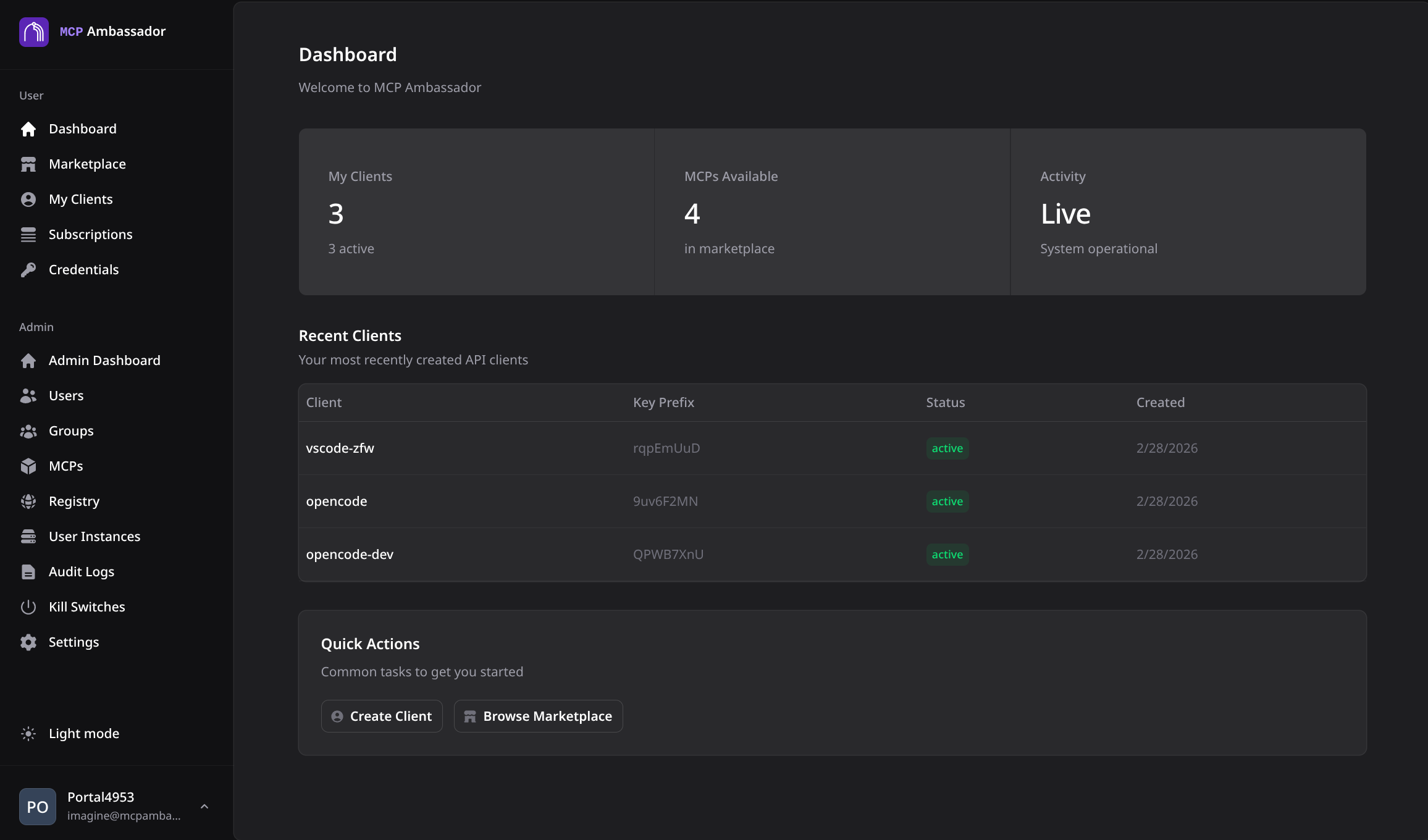
qa-tester/test1234 - Navigate to My Clients → Create Client
- Friendly name:
VS Code - Dev Laptop - Host tool:
vscode
- Friendly name:
- Copy the preshared key (
amb_pk_...) — shown only once - Navigate to Marketplace → click on
context7→ Subscribe - Select your client, choose the tools you want, click Subscribe
5. Connect your AI tool
Add the Ambassador Client to your AI tool config using the preshared key from step 4.
Claude Desktop
Edit ~/Library/Application Support/Claude/claude_desktop_config.json:
{
  "mcpServers": {
    "ambassador": {
      "command": "npx",
      "args": ["-y", "@mcpambassador/client"],
      "env": {
        "MCP_AMBASSADOR_PRESHARED_KEY": "amb_pk_your_key_here",
        "MCP_AMBASSADOR_URL": "https://localhost:8443"
      }
    }
  }
}
VS Code (settings.json)
{
  "mcp": {
    "servers": {
      "mcpambassador": {
        "command": "npx",
        "args": ["-y", "@mcpambassador/client"],
        "env": {
          "MCP_AMBASSADOR_PRESHARED_KEY": "amb_pk_your_key_here",
          "MCP_AMBASSADOR_URL": "https://localhost:8443"
        }
      }
    }
  }
}
Claude Code
claude mcp add ambassador -- npx -y @mcpambassador/client
# Set environment variables in your shell profile or .env:
# MCP_AMBASSADOR_PRESHARED_KEY=amb_pk_your_key_here
# MCP_AMBASSADOR_URL=https://localhost:8443
6. Verify
Restart your AI tool. The subscribed tools should appear in the tool list. For Context7: resolve-library-id and query-docs.
# Check server health
curl -k https://localhost:8443/health
# → {"status":"ok","version":"0.8.0-beta.2"}
Next steps
- Architecture overview — understand how the gateway works
- Creating Clients — manage multiple devices
- Admin Guide: MCP Catalog — add more MCPs from the registry
- Community Registry — 38+ pre-configured MCPs