Admin Guide
User Management
Admins manage users via the Admin UI at https://your-server:9443 or via the Admin API.
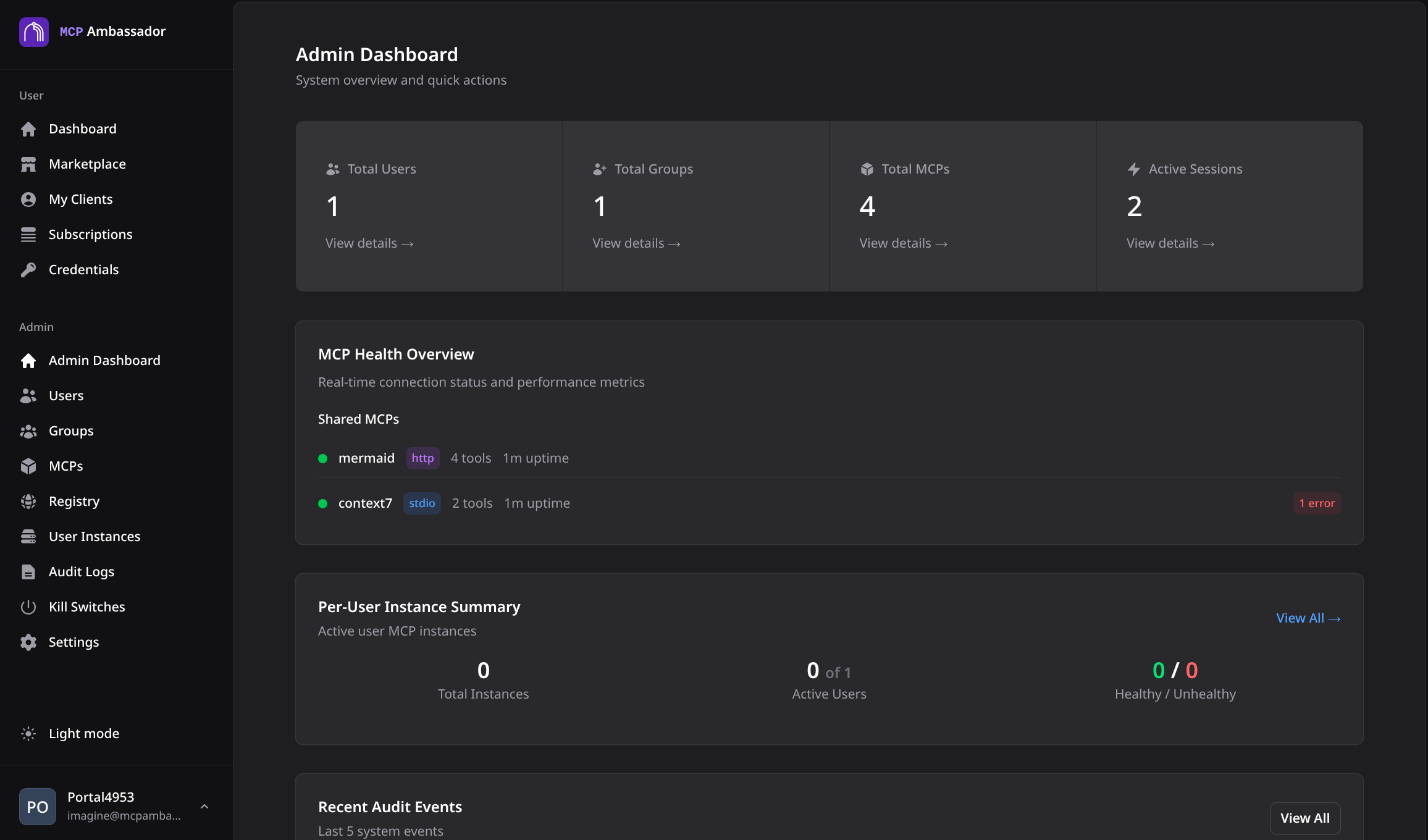
Creating users
Via Admin UI
- Log in to
https://your-server:9443 - Navigate to Users → Create User
- Enter username, email, and initial password
- Click Create
Users can change their own password after first login.
Via Admin API
curl -k -b cookies.txt \
  -X POST https://localhost:9443/v1/admin/users \
  -H "Content-Type: application/json" \
  -d '{
    "username": "alice",
    "email": "alice@example.com",
    "password": "initial-password-change-me"
  }'
# → {"id": "uuid", "username": "alice", "email": "alice@example.com", "active": true}
Listing users
curl -k -b cookies.txt https://localhost:9443/v1/admin/users
Returns all users with their IDs, usernames, emails, and active status.
Viewing user details
curl -k -b cookies.txt https://localhost:9443/v1/admin/users/:id
Returns the user's details, group memberships, registered clients, and subscription count.
Updating users
curl -k -b cookies.txt \
  -X PUT https://localhost:9443/v1/admin/users/:id \
  -H "Content-Type: application/json" \
  -d '{"email": "alice-new@example.com"}'
Fields you can update: email, display_name.
Resetting passwords
Via Admin UI
Navigate to Users → select user → Reset Password → enter new password.
Via Admin API
curl -k -b cookies.txt \
  -X POST https://localhost:9443/v1/admin/users/:id/reset-password \
  -H "Content-Type: application/json" \
  -d '{"password": "new-password"}'
Passwords are hashed with Argon2id before storage.
Deactivating users
Deactivating a user:
- Prevents login
- Invalidates all active sessions
- Revokes all preshared keys and client session tokens
- Preserves encrypted credentials and audit log records
Via Admin UI
Navigate to Users → select user → Deactivate.
Via Admin API
curl -k -b cookies.txt \
  -X DELETE https://localhost:9443/v1/admin/users/:id
This is a soft delete — the user record is retained for audit purposes. To reactivate, use:
curl -k -b cookies.txt \
  -X PUT https://localhost:9443/v1/admin/users/:id \
  -H "Content-Type: application/json" \
  -d '{"active": true}'
Preshared keys
Preshared keys authorize Ambassador Clients to register on behalf of a user.
Creating a key
curl -k -b cookies.txt \
  -X POST https://localhost:9443/v1/admin/users/:id/preshared-keys \
  -H "Content-Type: application/json" \
  -d '{"label": "Claude Desktop - Work Laptop"}'
# → {"key": "amb_pk_XXXX", "label": "Claude Desktop - Work Laptop"}
The key is shown once and not stored in plaintext. Give it to the user immediately.
Listing keys
curl -k -b cookies.txt https://localhost:9443/v1/admin/users/:id/preshared-keys
Returns key IDs, labels, and whether each key has been used (registered).
Revoking a key
curl -k -b cookies.txt \
  -X DELETE https://localhost:9443/v1/admin/users/:id/preshared-keys/:key_id
Unused keys are revoked immediately. If a key has been used to register a client, the client is also deactivated.
Self-registration
By default, self-registration is disabled (planned for v1.1). All users must be created by an admin.
Default accounts (development only)
In NODE_ENV=development, two seed accounts are created on first boot:
| Username | Password | Role |
|---|---|---|
admin | admin123 | Admin |
qa-tester | test1234 | User |
These accounts are not created in production mode. Set NODE_ENV=production before deploying.