User Guide
Creating Clients
A client is a registered instance of the Ambassador Client — one per device or AI tool. One user can have many clients.
How clients work
Each client gets:
- A preshared key (
amb_pk_...) — provided by the admin, used for registration - A session token (
amb_st_...) — generated at registration, used for all subsequent calls - A tool selection — which tools from the user's available MCPs are enabled for this client
Clients are identified by a UUID. The server tracks which user owns each client and what tools are enabled.
Admin: creating a preshared key
Preshared keys are created by admins in the Admin UI or via API.
Via Admin UI
- Log in to
https://your-server:9443 - Navigate to Users → select the user
- Click Create Preshared Key
- Enter a label (e.g., "VS Code - Work Laptop")
- Copy the key — it is shown only once
Via Admin API
curl -k -b cookies.txt \
  -X POST https://localhost:9443/v1/admin/users/:user_id/preshared-keys \
  -H "Content-Type: application/json" \
  -d '{"label": "VS Code - Work Laptop"}'
# → {"key": "amb_pk_XXXXXXXXXXXXXXXXXXXX", "label": "VS Code - Work Laptop"}
User: registering a client
The Ambassador Client registers automatically on first run when the preshared key and server URL are provided in the config.
Claude Desktop example
{
  "mcpServers": {
    "ambassador": {
      "command": "npx",
      "args": ["-y", "@mcpambassador/client"],
      "env": {
        "MCP_AMBASSADOR_URL": "https://your-server:8443",
        "MCP_AMBASSADOR_PRESHARED_KEY": "amb_pk_your_preshared_key"
      }
    }
  }
}
On startup, the Ambassador Client:
- Calls
POST /v1/clients/registerwith the preshared key - Receives a session token and CA fingerprint
- Fetches the personalized tool catalog
- Presents the tools to the AI tool
The preshared key is consumed on registration — it cannot be reused to create a second client.
User: managing clients
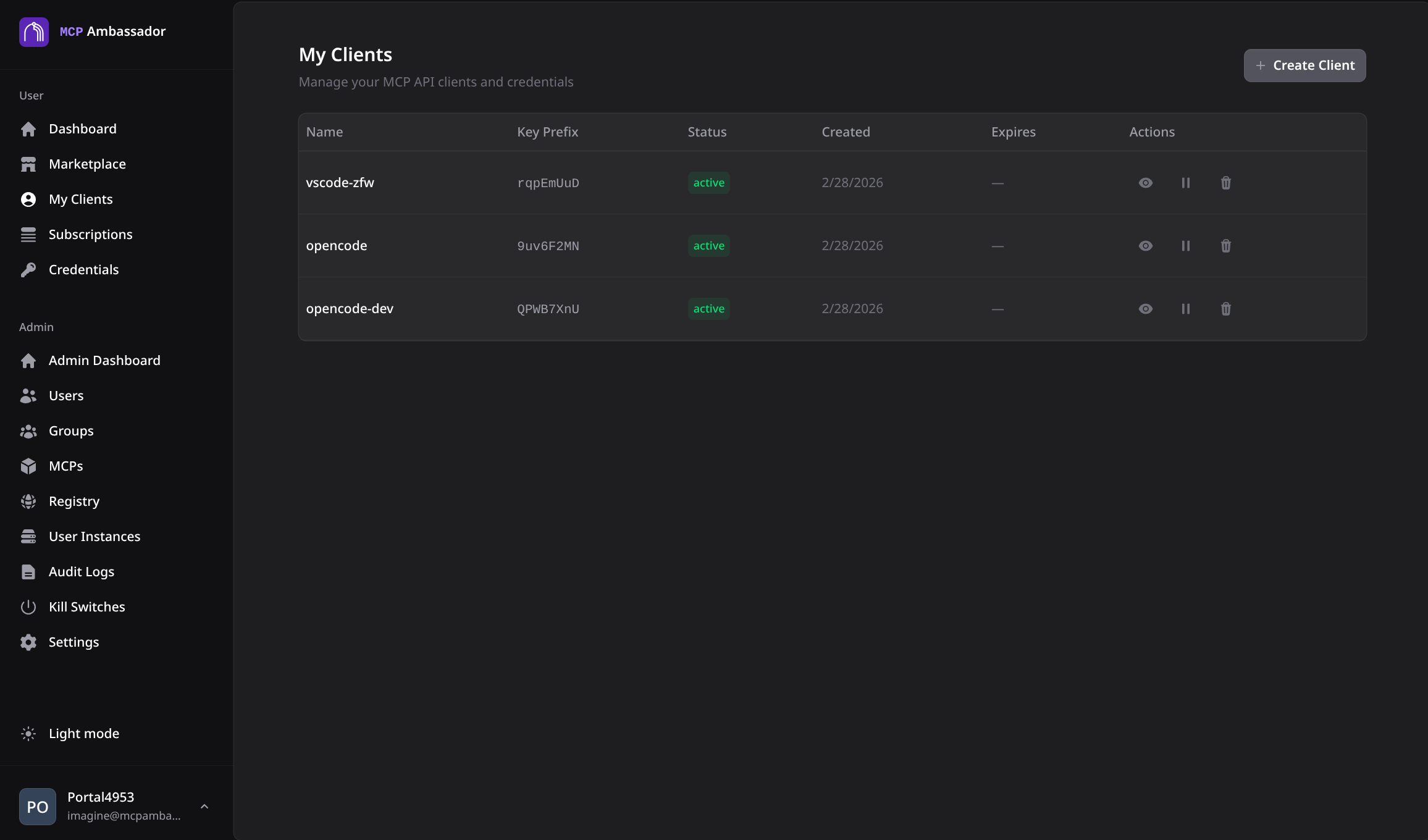
User portal
Users can view and manage their own clients at https://your-server:9443:
- Log in and navigate to My Clients
- See all registered clients with their labels and last-active timestamp
- Click Deactivate to revoke a client's session token immediately
Per-client tool selection
Users can control which tools are enabled for each client:
- Navigate to My Clients → select a client
- Click Configure Tools
- Enable or disable individual tools from your subscribed MCPs
- Save — the change takes effect on the client's next tool catalog refresh
This allows granular control: a CI/CD agent might only have read-only tools enabled, while a developer workstation has the full set.
Client states
| State | Description |
|---|---|
| Active | Client can call tools normally |
| Deactivated | Session token revoked; client cannot call tools |
Deactivating a client does not delete it. The admin can see the record in audit logs. The user can deactivate their own clients; an admin can deactivate any client.
Multiple clients per device
If a user runs multiple AI tools on the same device (e.g., Claude Desktop and VS Code), create a separate preshared key and client for each. Each client gets its own session token and tool selection.
Labels should clearly identify the client:
Claude Desktop - Work LaptopVS Code - Work LaptopCI/CD Agent - GitHub Actions
Security considerations
- Preshared keys are one-time use — each key creates exactly one client
- Session tokens are stored in memory only — not written to disk by the Ambassador Client
- Deactivation is immediate — the session token is invalidated server-side; no waiting for expiry
- Each client is audited independently — all tool invocations are logged with the specific client ID
Client performance settings
The Ambassador Client has built-in performance tuning for heartbeat frequency and tool catalog caching. These defaults are tuned for production use:
| Setting | Default | Description |
|---|---|---|
| Heartbeat interval | 120s | How often the client sends a keep-alive to the server |
| Cache TTL | 300s | How long the client caches the tool catalog before refreshing |
| Cache enabled | true | Tool catalog caching (recommended for production) |
These can be configured via amb-client-config.json or environment variables. See the client README or the Configuration page for deployment profiles.